
How to Compress Images Without Losing Quality (2025 Guide)
Compressing images without losing quality is the highest-leverage speed win on most websites — images often make up 40-60% of page weight. This guide covers lossless versus lossy trade-offs, per-format quality settings and a repeatable batch workflow, no paid tools required — pair it with the WebP guide for the format specifics.
Why Image Compression Matters
Every 100KB you shave off your images can improve load time by ~100ms on 4G connections. For e-commerce sites, this directly impacts conversion rates.
Studies show that a 1-second delay in page load time can reduce conversions by up to 7%. Since images typically make up 40-60% of total page weight, they're the first place to look for quick wins.
The good news: you can often reduce image file sizes by 60-80% without any visible quality loss. This guide walks you through the exact process.
Understanding Quality Settings
Most formats use a quality parameter (0-100):
- 80-85: Sweet spot for most photos — visually lossless, 60-70% smaller
- 60-75: Good for thumbnails and non-critical images
- 90+: Diminishing returns — much larger files for barely visible improvement
Here's what the numbers mean in practice for a 1200×800 product photo:
| Quality | File Size (WebP) | Visual Difference |
|---|---|---|
| 95 | 280 KB | Indistinguishable from original |
| 85 | 145 KB | Indistinguishable from original |
| 75 | 95 KB | Very subtle detail loss |
| 60 | 62 KB | Noticeable in flat areas |
| 40 | 38 KB | Visible artifacts |
The jump from quality 95 to 85 saves 48% file size with zero perceptible difference. That's why quality 80-85 is the industry standard.
Lossy vs Lossless Compression
| Type | What it does | Best for |
|---|---|---|
| Lossy | Removes imperceptible data | Photos, gradients |
| Lossless | Optimizes encoding only | Logos, screenshots, icons |
When to use lossy: Product photos, hero images, blog images, backgrounds — anything photographic.
When to use lossless: Company logos, UI screenshots, diagrams, images with text — anything where pixel-perfect accuracy matters.
Most modern tools default to lossy compression because it achieves dramatically better file size reduction. WebP lossy at quality 80 typically produces files 70% smaller than the original JPEG.
The Resize-Then-Compress Rule
The single biggest mistake websites make is serving oversized images. If your image displays at 800×600 pixels, there's no reason to serve a 4000×3000 file.
The math: A 4000×3000 image has 25x more pixels than an 800×600 display slot. Even with perfect compression, you're wasting bandwidth.
Always resize first, then compress:
- Determine the maximum display size (check your CSS
max-width) - Resize to 1.5x or 2x the display size (for Retina/HiDPI screens)
- Then apply format conversion and quality compression
For example, a 800px-wide card image should be exported at 1600px wide (2x for Retina), then compressed to WebP at quality 80.
Practical Workflow
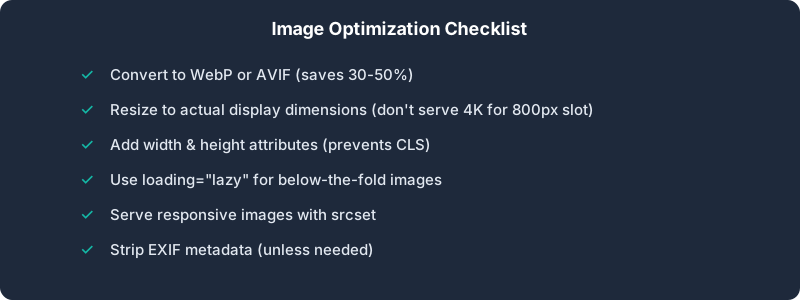
- Start with the right format: Photos → WebP/AVIF, Icons → SVG, Screenshots → PNG
- Set quality to 80: Adjust up/down based on visual inspection
- Resize first: Don't serve a 4000px image in a 400px container
- Batch process: Use our converter to handle dozens of images at once
- Add lazy loading: Use
loading="lazy"for below-the-fold images - Include dimensions: Always set
widthandheightto prevent layout shift
Format Selection Guide
Not sure which format to use? Here's a quick decision tree:
- Is it a photograph? → WebP (quality 80) or AVIF (quality 75)
- Does it need transparency? → WebP with alpha, or AVIF with alpha
- Is it a logo or icon? → SVG if possible, otherwise PNG
- Is it a screenshot or diagram? → PNG (lossless) or WebP (quality 90+)
- Does it need animation? → WebP (animated) or GIF (legacy)
For a deeper comparison, see our WebP vs AVIF guide.
The Privacy Advantage
Unlike online compressors that upload your images to remote servers, our tool processes everything locally in your browser using WebAssembly. Your images never leave your device.
This matters especially for:
- Confidential business documents
- Personal photos
- Client work under NDA
- Any image you don't want stored on a third-party server
Key Takeaway
Quality 80 + WebP format = 70% smaller files with no visible quality loss for most images. Start there and adjust as needed. Resize to actual display dimensions first, and always batch process for efficiency.
Ready to optimize your images?
Try BulkPicConv — Free